 CarSignal
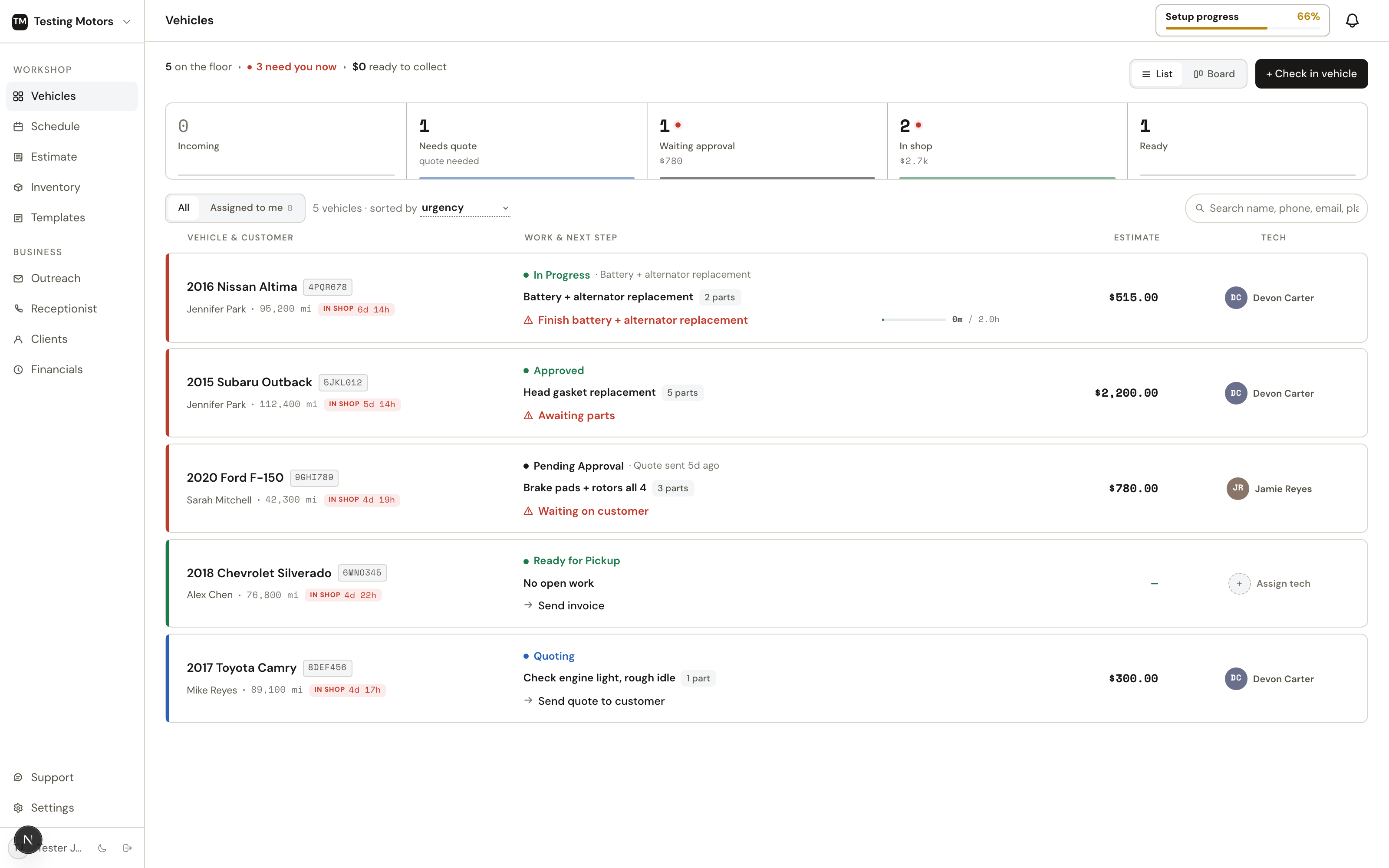
The Vehicles page is the heart of CarSignal. It shows every active car as a card (Board view) or a row (List view), grouped by where it is in the pipeline.
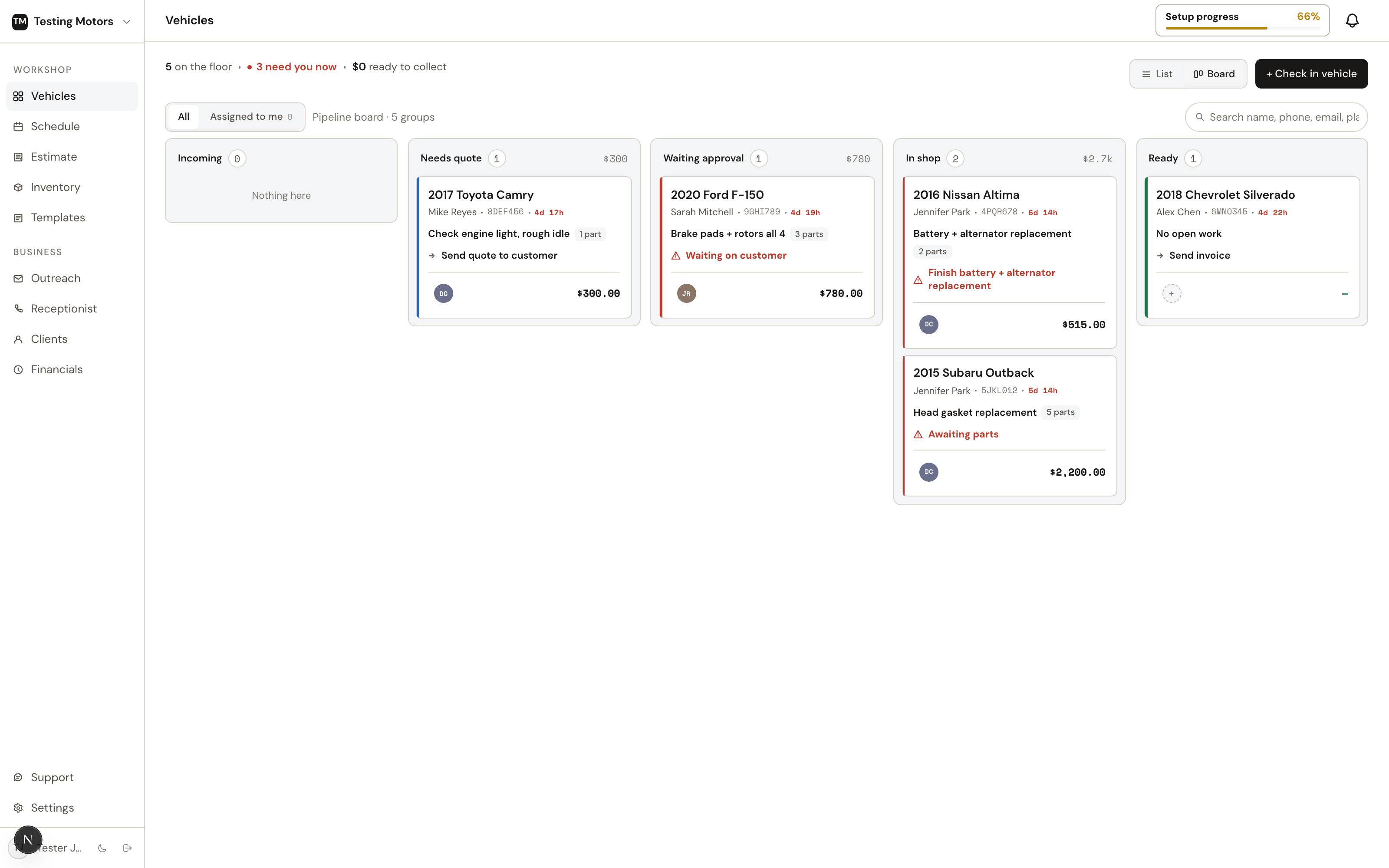
The lanes
| Lane | What it means |
|---|---|
| Scheduled | Booked appointments and brand-new leads that have not been checked in |
| Needs quote | The car is here (or the request is in), but nothing is priced yet |
| Waiting approval | An estimate was sent and the customer has not answered |
| Waiting parts | Approved work with parts that still need ordering |
| In repair | Parts are handled (or the job needs none); the work can run |
| Ready | Work is done; collect payment and hand back the keys |
Any car with an appointment from today on is in Scheduled, whatever happened on its last visit: a car you picked up last month and booked again from the Schedule page, the car page or the phone shows here the moment it is booked, with its appointment time. A deleted car is never on the Vehicles page, and the Schedule page does not offer it for booking.
Scheduled also lists appointments booked for a person with no car on them yet, in the same five slots: the customer's name, phone and time, Scheduled with the work they booked (or No car yet), and the next step Add the car on arrival. Click one when they walk in: pick the car they brought (or Add a car the way check-in finds one: a typed year and model, a VIN, or the plate and its state, then confirm the match), and CarSignal opens the repair order on that car, checks it in and takes you to it. A person with no car has no repair order until the car is added.
Save for later
Any visit with nothing approved yet can be put away, whether you are still writing the estimate (Quoting) or it is waiting on the customer (Awaiting approval), as long as the car is not in the shop and has no appointment. When you would rather not look at it for now, press Save for later: on the card (hover the tile, or the word on the list row) or in the row's three-dot menu. It lives on this page only; the vehicle page and its send sheet do not offer it.
Saving for later hides the visit. It leaves the board and the list; there is no Estimates column or tab for it. A quiet Saved for later chip at the end of the stage tabs, shown only while something is saved, lists what you put away, each with the quote's life as its document line (Quote sent 15d ago · not opened, then opened 1d ago the moment the customer opens the link), the quote total as the customer saw it, and the customer's phone as a tap-to-call link. Bring back on a parked row returns it by hand.
The moment the customer approves on the link (or you record an in-shop approval), the visit comes back on its own, no reload, at the top of the main list and board: it joins Waiting parts or In repair by its parts, the document line says Approved 2h ago, and because the car is not in and has no appointment the stage line adds Needs scheduling with the next action Schedule the customer. Checking the car in or booking it an appointment brings it back the same way.
A saved quote the customer declined in full stays saved for 30 days as Declined 2h ago with the next action Follow up (it opens the Outreach follow-up queue), under the same chip. Approving a quote on a car that already has an appointment keeps it in Scheduled, now with Approved 2h ago on its document line. The phone's Vehicles tab hides saved estimates the same way, behind the same Saved for later chip, with Save for later and Bring back in the row's three-dot menu (not on the car's page).
The Waiting parts / In repair split follows your real parts status: a part counts as handled once it is ordered through PartsTech, marked ordered by hand, or pulled from inventory. The moment the last part on a car's approved jobs is handled, the card moves to In repair on its own.
The five slots
Every board card and every list row carry the same five things in the same order, so you learn it once and read either view the same way:
- Vehicle: the RO number, year make model, the customer (with a green count when they have texted and nobody has read it), one identity code on a tile (the unit number for a fleet car, else the plate; hover the card for the other), the key tag when check-in recorded one (Key A12; only with Key tags and visit labels on in Settings > Profile > What you work on), Mobile when the mechanic drives out, Waiting or Towed when the visit was marked that way (a drop-off says nothing), and the promise time: the "due" time from the vehicle page, orange inside two hours, red once it has passed. A booked car shows its appointment here instead; a picked-up car shows when it left.
- Stage and next step: the stage word (a red Urgent after it when the car is stuck past your thresholds), the visit's label as a small grey chip when you gave it one (Comeback, Fleet PM; click the chip to change it; same switch as the key tag), with the open jobs beside it (a tile drops the jobs text when a long stage word plus Urgent would push it off the line; hover for it); then the document line, which tells you where the paperwork stands without opening anything: Quote not sent, Quote sent · not opened, Quote sent · opened 2h ago, Approved, Not invoiced, Invoice sent · signed, Invoice paid; then the one next action in words (Finish front brakes, Collect balance). Status words are colored the same everywhere: sent documents blue, awaiting approval orange, approved and paid green, overdue and urgent red.
- Money: the amount, and under it only what is happening with payment: Paid, Partially paid, Balance due $400, Unpaid. In the list, whether the number is an estimate, a sent quote or approved work is the document line's job; on a board card the amount carries that word itself (Estimate, Quoted, Approved, Invoice total). Team members without money access see nothing here.
- Progress, as words you can hover: Parts 0/3 (a part counts once it is ordered through PartsTech, marked ordered by hand, or pulled from inventory), 1.2/2.5h (hours logged of quoted, ticking while a tech is clocked in), and the inspection (Inspecting, Inspection sent, Inspection viewed). Nothing shows until there is something to count.
- Tech: the technician by name (tap the name to assign), or Unassigned.
On the board a card tells the whole story without opening the car, in at most six short rows: the car, the plate or unit with the RO and where the visit came from, the customer, the work in bold on one line (both jobs when they fit, else the first with +2; long book names like Engine Coolant System Drain, Flush & Refill read Coolant flush), one colored line saying where things stand (red Not ordered: Rotor, Pads +2 names the parts still to order, red when payment is outstanding, green when approved, paid or the customer opened the quote), and one quiet line with the time, parts, hours and inspection, with a thin progress bar under it on cars in repair. At the bottom sit the tech and bay, and the money on one line with what it is and whether it is paid (Invoice total $50.00 · Unpaid). The column already names the stage, so the card does not repeat it; a car running late or stuck shows its time in red. Hover a card for the full job list and the next step. In the list the five are columns with one header. Hover any word for the long form; hover the stage line for the per-job breakdown (which part is not ordered, who is clocked in, a job's own promise). Tap the customer name on a card for phone, email, or a text thread.
Next actions
Every vehicle shows one computed next action, so nobody has to reconstruct state from memory: Build quote, Send quote to customer, Waiting on customer, Order parts, Awaiting parts, Finish the job, Collect payment, Mark picked up. A booked car whose appointment day passed without a check-in reads Missed appointment, follow up.
Urgency flags
A red flag means a real bottleneck, not just age:
- Waiting on approval for more than 48 hours
- Approved but parts not ordered within 24 hours
- Waiting on parts for more than 5 days
- In progress with no update for 72 hours
- Ready for pickup for more than a day
- A missed appointment
Recent cars
The search box in the top bar, before you type anything, lists the last eight cars you opened at this location, each with its RO number and stage. Click one to go straight back to it. The list is yours alone (per person, per location) and lives in your browser.
List vs Board
List view is the same five slots as columns, sortable. The default order is recent activity: the car with the most recent real change sits on top. A real change is something that happened to the job: a line added, removed or repriced, a discount, a job added or moved to a new status, a quote sent or approved, a bill sent or paid, a payment, check-in, pickup, a tech assigned, an appointment booked or moved. Opening the car, a customer viewing a link, drafts rebuilding in the background, reminders, and anything else the app does on its own never move it. Other sorts (recently added, longest in shop, newest in shop, value, name, unit number) are one tap away in the sorted-by menu. Board view is the pipeline at a glance. The tech menu narrows either view to one person's cars (or the unassigned ones), and search matches name, phone, email, plate, VIN, or RO number.
Board cards drag, and a drop runs the real action, never a silent relabel:
- Scheduled into the shop checks the car in. It then lands on whatever lane its jobs really put it.
- Needs quote to Waiting approval opens the vehicle to send the quote.
- Waiting approval to In repair or Waiting parts asks to record an in-shop approval (for the customer who said yes in person or by phone).
- Waiting parts to In repair asks to mark the approved jobs' parts ordered, for parts ordered by phone or at the counter. PartsTech orders still go through the cart on the vehicle page.
- Into Ready finishes the job. With several jobs open, a picker asks which ones are done.
While you drag, the lanes that can take the card light up. A drop the car's state cannot support (say, Needs quote straight to In repair) does nothing but tell you what has to happen first, and the card stays put. Cards never move backward by hand; they move back on their own when work reopens.
You never set a stage by hand. Stages are derived from facts, like whether a quote exists, whether it is approved, and whether parts are ordered. See Stages and next actions.