 CarSignal
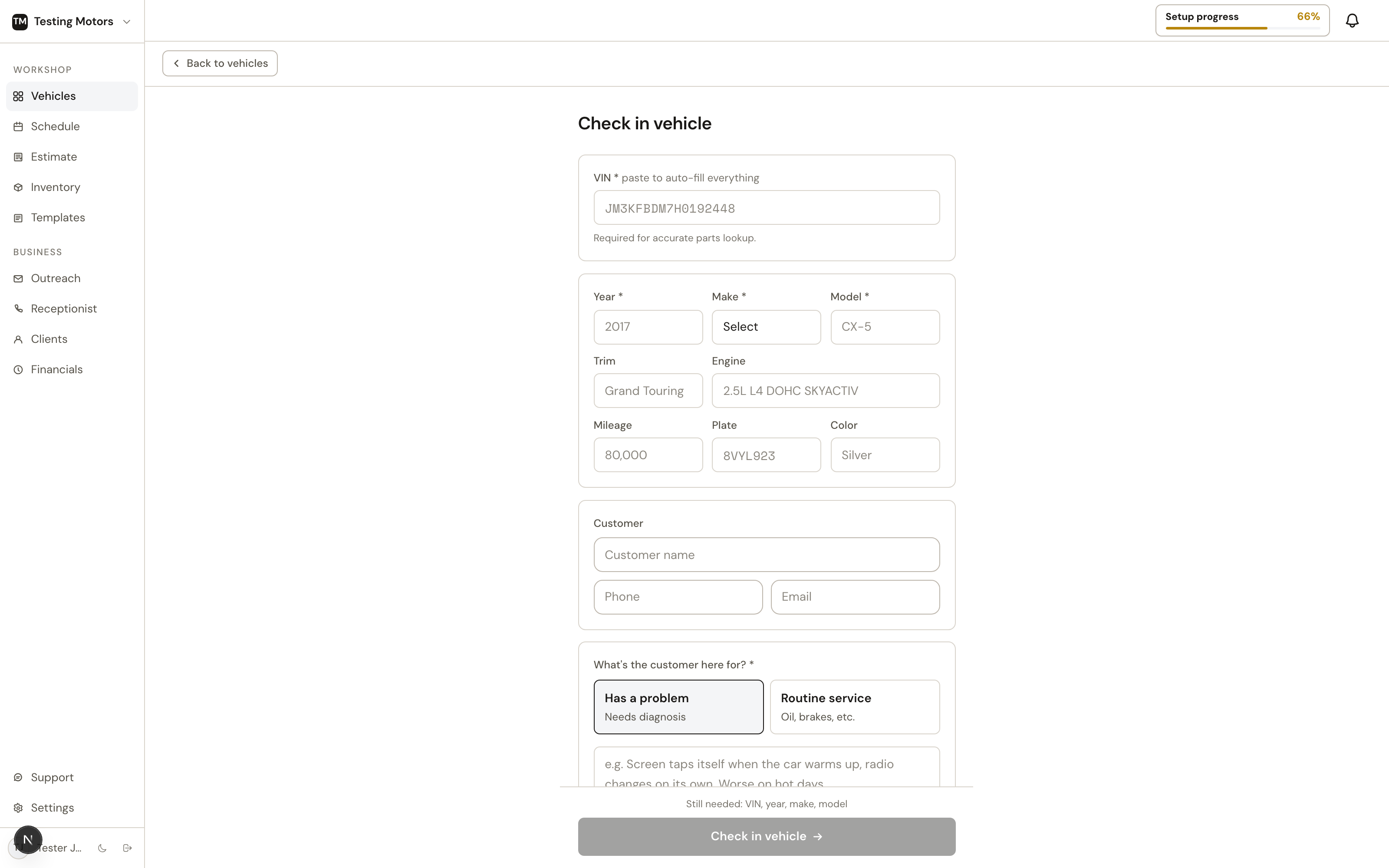
Check-in creates the customer, the vehicle, and the repair order in one pass, and puts the car on the board. Check in opens the car's page the moment the vehicle and its repair order exist, with every job you wrote up already listed; their details fill in over the next second or two (a complaint's short title, a canned job's lines, a labor-guide operation's book time and parts), so you are never waiting on a spinner to start working. The page is titled Check in because it always starts a visit (in the shop now, or a scheduled arrival); new cars and new customers are added as you go. To register a car without a visit, use Add vehicle on the client's record instead.
The flow
- Click + Add vehicle on the Vehicles page (or Add vehicle in the mobile app, where you can scan the plate or VIN with the camera). The same form checks the car in now or books it for later.
- Pick or create the client. Existing customers match by phone number, so repeat visits attach to their history automatically. Picking a customer also shows their vehicles as one-tap chips: tap the car that just pulled up and the whole form fills from its record. No retyping, and the fastest path for fleets.
When a phone number is on the form, one more row appears under it: Text reminders, with its switch (On or Off) at the right and what it covers in a quiet line under the name. It is On when you type a new customer's number (you are asking them at the counter, so this is the moment the yes is given) and shows the stored answer for a returning customer, so a number that arrived by import or an unticked booking stays off until they say yes. It covers service reminders and specials only; quote links and receipts go out either way, and the customer can reply STOP any time. The answer lands on their record and can be flipped later on the client's Profile tab.
- Enter the vehicle. Search it ("2018 F-150"), paste the VIN, or just type the license plate: the plate looks up the VIN and fills in the whole car. Any of the three is enough. If a VIN is already entered, the plate lookup still runs as a cross-check: it tells you when the plate comes back to a different VIN, so a typo gets caught instead of saved. A car that is already in your shop's records fills the whole form from its record, owner included, and checks back in as a new visit on the same history, with the shop's next RO number (every visit has its own); CarSignal blocks accidentally checking the same car in twice while it is still on the floor. A VIN or plate already on file as a different car (another make, or years apart) is refused, not reused: the form names that car and its owner so you can fix the VIN or open that record instead.
Picked one of the customer's past cars by mistake? Different car under the "already on file" notice clears it (pressing the car's chip again does too), and typing a new VIN, plate, year, make or model drops the pick on its own, so a new car never lands on an old record.
Someone other than the owner bringing the car in (a spouse, an employee driver)? A recognized car fills in its owner automatically; click Someone else dropping it off? to swap in whoever is at the counter. CarSignal then asks: keep them as this visit's contact (they get the visit's texts, approval links, and receipt while the car and its history stay with the owner) or make them the new owner outright. The vehicle page shows who this visit's updates go to, with one click to clear it; you can also set one mid-visit from Someone else this visit? in the customer card.
- Describe the visit. Choose Something's wrong for a complaint (enter the customer's words, plus any DTC codes if you scanned it) or pick routine maintenance services. You can also drop in canned jobs.
Once the car is known, routine service also offers Operations for this vehicle: type the work (brake pads, oil, spark plugs) or tap a quick-service chip, and the labor guide lists its operations for that exact car with book hours, front and rear apart. Add puts the operation on the write-up; when the car is checked in, each one becomes a job with the labor laid down at your rate and a part slot that lists your suppliers' parts to pick from on the job card, exactly as adding it on the vehicle page would. Work the guide does not file for the car can still be added as a plain job. The mobile app's New job screen works the same way.
Serving commercial fleets that refer to trucks by their own unit numbers? Turn on Fleet unit numbers in Settings → Profile → What you work on and check-in gains a Unit # field. The number shows next to the plate on the board, on the vehicle page, and is searchable everywhere plates are; the Vehicles list also gains a "unit #" sort, so the board reads in the same order your fleet customer's dispatch sheet does.
That is it. The car appears in the right lane with an open issue, ready to quote.
The visit's own facts
Three small things on the check-in form land on the repair order, not the car, so they belong to this visit only:
- Visit: a small menu under the In the shop now / Scheduled choice, beside Promised by: Drop-off (the default), Waiting or Towed. The board and the vehicle header say Waiting or Towed beside the customer's name; a drop-off says nothing, because almost every visit is one. The same menu sits at the top of the schedule form when you book, and the choice carries over when the car arrives.
- Key tag (only when Key tags and visit labels is on in Settings > Profile > What you work on; it is off by default): the number on the hook. It shows in the vehicle header and on the board's first line (Key A12), so anyone can find the keys without asking.
- PO number, a quiet Add PO number link under the visit line (it opens a row of its own, so the visit line and Promised by never move), shown when the customer is a business or fleet (today: any customer with a company name). A PO belongs to the visit, never to the car: it is stored on the repair order and the invoice starts with it the moment the bill is created, so a fleet's PO prints without retyping. You can still change the PO on the vehicle page or on the invoice itself.
The key tag and the PO can be changed later from the vehicle header (the key tag is a click-to-edit fact on the facts line when the switch is on; the PO sits under the customer's name for business and fleet customers). The visit kind is chosen once, here or on the schedule.
Where check-ins come from without you
Most cars can arrive on the board before anyone types anything:
- The AI receptionist creates the client, vehicle, and issues from a phone call or text.
- Website booking does the same from your public booking page.
- Approved quotes with a chosen time create the appointment automatically.
In those cases, check-in is just confirming the car showed up.
DTC codes entered at check-in feed straight into AI diagnostics, so the diagnosis starts from real evidence.
Need a paper copy for the clipboard? The vehicle page's ... menu has Print repair order: pick the jobs, check Without prices for the tech copy, and you get the visit's jobs with complaint notes, labor hours, and part numbers. Handy for techs who work off a printed sheet.