 CarSignal
Paid jobs keep their saved work and customer-facing notes read-only. Customer and Findings appear as selectable text, not disabled editors. Unsettled approved work uses Revise approved work; new work after payment starts from New job. Per-job gross profit lives in the money rail, without repeating in each job footer.
Click any car on the board to open its hub. Everything about the visit lives here.
The header
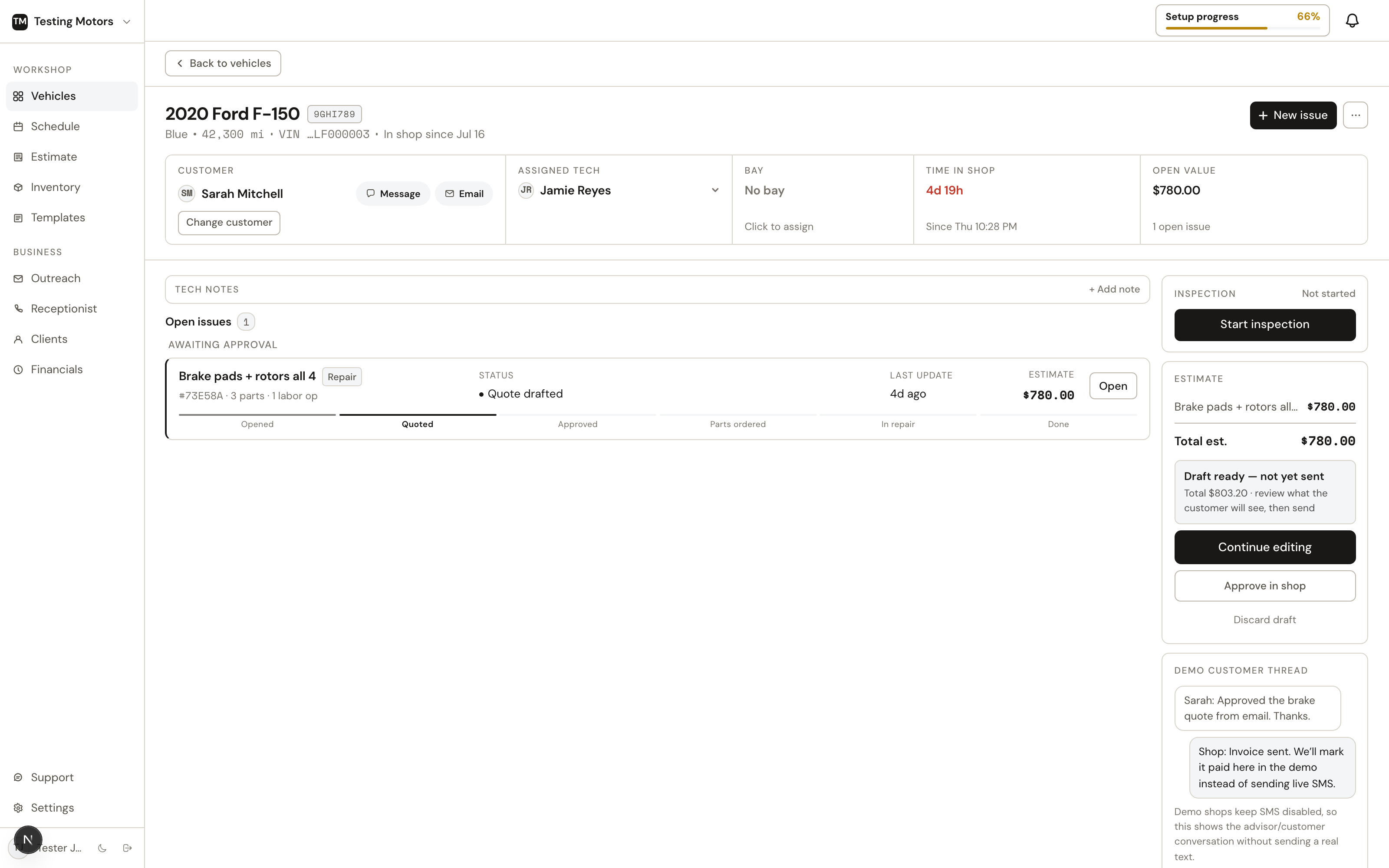
Vehicle and customer info, the assigned tech, the scheduled time, and a contextual primary action that matches the stage. Click the customer's name for their file (phone, email, address, and any balances) in a sheet right here, with a jump to the full profile; Message still opens texting (check in, schedule, order parts, start repair, or new issue), and Mark complete always shows once any job is ready to close out. The complete picker lists every open job: completing requires an assigned technician (the record of who did the work; assign one and the job unlocks), and a job the customer never approved can still be closed, but if it carries charges you must confirm the customer authorized the work. That confirmation is recorded on the job with your name and prints on the invoice as the approval record ("Approved: in person or by phone"). When completion finishes all open work, a checkbox controls the "car is ready" text. Uncheck it to close things out silently (bookkeeping, or the customer is standing right there). The Schedule modal has the same silent option for booking, moving, or removing an appointment. It opens on your next open day (never a closed weekday or a closure), closed days read quiet in its day picker, and a day the shop is closed is refused in words with the choice to schedule anyway; the phone's Schedule sheet follows the same rules, lays work longer than a day across your open days (the End row shows the last working day) and confirms "Scheduled Wed, Oct 28, 8:00 AM · 18.6 h over 3 days". The visit's dates are two separate controls in the header: Appointment · Wed, Oct 28, 8:00 AM on the customer's line opens the Schedule modal on that day and time, and reads Schedule work whenever nothing is booked, for a car that is booked, in the shop or picked up alike; Promised Wed 5:00 PM sits on the title line right after the time in the shop (Promised · Not set until you set it) and opens its own day and time picker. Booking says so right there: "Scheduled Wed, Oct 28, 8:00 AM · 18.6 h over 3 days". Customer, appointment and team share one line, with Tech, Writer and Bay pinned to the right edge so they never move when a date gets longer or shorter: on a narrower screen the appointment drops its weekday (Oct 28, 8:00 AM; it always keeps its time), and only if that still does not fit does the team take the next line, still at the right edge. The Tech, Writer and Bay words always stay and names are never shortened. A car that is still in the shop can take its next appointment from the same control without touching the current visit's jobs, bill or promise; when you mark it picked up, that appointment starts its new visit and the car shows as Scheduled. A promise due within 24 hours turns the warning color, and a past one turns red and reads Overdue beside the time. Beside the car's name sits where the visit came from: Online booking, Phone, Text or Walk-in, filled in from how the visit started and changed in one tap. An online booking stays Online booking. The Vehicles list, the board and the phone show the same word. The visit's Address sits with the dates: the address you set for this visit, else the one the booking carried, else the customer's file address for a mobile-service shop (any shop sees it once the visit or its booking has one). The street opens in Maps (Apple Maps on a Mac or iPhone, Google Maps elsewhere); Edit address and Set address live in the header's menu as a one-field sheet, and Clear hands the row back to the booking's or the customer's address. The schedule popover prints the same address with Open in Maps. Customer texts follow the same truth: an approval confirmation quotes the booked time instead of promising a follow-up, and mobile-service visits always read as "we'll come to you," never as a drop-off. Mark as picked up says what it does before it does it: the car leaves the board but keeps its full history under the customer (new work brings it right back). When the invoice is paid, a checkbox controls the review-request text, so a silent close-out never surprises anyone. Unfinished work is handled honestly at pickup: a job still in repair blocks the close-out until the tech finishes or moves it back, and any other open job is marked deferred (they'll come back for it) so history stays true, the bill drops the undone work, and follow-ups can bring the customer back. Nothing is ever silently recorded as done. Once the car is picked up, the header also says when to expect it back: "Picked up · Oct 21 · Oil change due around Apr 21, 2027" (hover for the interval: every 6 months, your shop's usual when your own history set it, else the usual interval). It comes from the visit's job types, so a repair plans nothing and an oil change plans the next one.
With Key tags and visit labels on (Settings > Profile > What you work on; it is off by default), Add label, beside the stage word, puts one short note on the visit (40 characters: Comeback, Waiting on customer parts, Fleet PM). As you type, your shop's recent labels are suggested so the same words get reused. The label shows as a small grey chip after the stage on the board and the list; it is a note, not a status, so it never changes a color or a next step. Click it to change it; save it empty to clear it.
With the same switch on, the facts line under the title also carries the key tag (Key tag A12, click to change; + Key tag when check-in skipped it). A visit that is Waiting or Towed says so as a word after the stage (In shop · 2h · Waiting); that choice is made at check-in or on the schedule, not here. For a business or fleet customer, the visit's PO sits under the customer's name in the people line (PO none; click it, type, Enter), and the invoice starts with that number when the bill is created. Retail visits show no PO line.
Edit vehicle changes the car's identity and readings. While an invoice is issued and unsettled, the year, make, model, VIN, plate and check-in odometer are locked, because that invoice prints them; void or settle it first. The pickup odometer and everything else stay editable.
The header's overflow menu (the three dots) holds Print > Repair order: pick which jobs go on it, and check Without prices for the tech copy, the same RO with no money on it. A print-ready RO opens right over the page: shop letterhead, RO number, vehicle and customer, each job's lines with part numbers (and prices, unless you turned them off; the preview's own Prices box flips it too), and signature lines for the customer and the tech. Print opens the document in its own window so long ROs paginate properly. It's the internal working copy for the counter or the tech's bench, separate from the quote the customer approves and the invoice they pay.
The menu's Print row holds the paper documents: Repair order, Estimate, Windshield reminder and Recommended work, each opening over the page with one Print button in the sheet's header (the document inside draws none of its own). Estimate (when open jobs exist): the visit's jobs with prices, an Approve and a Decline box per job, a subtotal before tax and fees, and a customer signature line; a job that still needs pricing prints "Needs pricing" instead of a price, with no boxes and no share of the subtotal, so paper never says $0.00 for unpriced work. Windshield reminder: the oil-change sticker, printed at label size, not on a page. It opens in a small sheet whose height is the label's: pick the stock, turn it Landscape or Portrait where that changes anything, pick a Timeline (3 months or 3,000 miles, 6 months or 5,000, 6 months or 7,500, 12 months or 10,000, or Custom) and the Next date and Next mileage fill in from today and the car's current mileage; type over either one, change the current mileage if the odometer reads differently, then Print. Stock: 2.25 x 1.25 in oil sticker (Dymo 30334, Zebra 2.25 x 1.25, landscape by default), 2 x 2.5 in static cling (the default), 2 x 3 in, 2 x 2 in thermal, Plain paper, 4 per sheet (four clings on a letter page for cut cling sheets), or a Custom size in inches. The stock, orientation and timeline are remembered per shop. The small oil sticker prints the calm face: your shop name, address and Call: phone, a NEXT OIL CHANGE DUE box, then the date and the miles side by side. The taller clings carry what the real ones do: your shop name (and logo) and phone on top, NEXT SERVICE DUE with the mileage big and the date under it, the oil used (the grade and type from the visit's oil line, e.g. 0W-20 Full synthetic; a blank rule to write on when the visit has no oil line), the oil filter part number when the visit has one, Serviced date and odometer, the plate (or the last 8 of the VIN) and Serviced by with the technician's initials. Everything prints pure black so a thermal head prints it as drawn, and the page is exactly the label: no margin, no second sheet. Buy label stock, not paper: 2.25 x 1.25 in oil-change labels or 2 inch thermal cling rolls for a Zebra, Godex or Dymo label printer, or clear static cling sheets for your laser or inkjet (Avery 22843 and the like). Service reminder clings are not a regulated document; only state inspection and smog certificates are. Recommended work (when the vehicle has declined or set-aside jobs): those jobs with the prices the customer saw, so the deferred work leaves with them. The estimate and recommended sheets follow your What customers see choices and end with your estimate fine print.
Report to CARFAX is a quiet tick at the end of the vehicle facts line in the header (plate, VIN, engine, mileage), checked by default; it sends this visit's completed work to the vehicle's CARFAX history after checkout. Once the visit is uploaded the same spot reads Reported to CARFAX · Oct 24, your proof, and stays. CARFAX keys history on the VIN, but a plate and state are enough: the nightly export decodes the plate to the VIN and saves it on the car. Only a car with neither a VIN nor a plate shows the box off and greyed.
Issues
On web, click an editable job name or its pencil to rename it. Drag the name, header space, or grip to arrange your workspace; dragging does not open the editor. Click the grip to pick a position. You can drop over another card even when it is expanded. Fields, expanded notes, and dialogs remain editable without moving or closing the card. Keyboard users can use Space, arrow keys, then Space on the grip. The right rail follows your order within each section. This order stays in your browser for that user and visit; other staff, customer approvals, and invoice documents keep their own order. Newly added jobs appear at the end, and charges keep their separate section.
The vehicle header shows Awaiting approval when quoted work is on the sent estimate. Work on an unsent draft says Ready to send instead.
Each complaint or job is an issue with its own status, moving through: Opened, Diagnosing, Quoted, Awaiting approval, Approved, Parts ordered, In repair, Done. Declined work keeps its own section so it can be revived later. A job gets there two ways: the customer declines it from their quote link, or you record their no yourself with Decline on the job card (in person, phone, or text, with an optional reason). Either way the job stays on the customer's profile and shows up in Outreach follow-up instead of disappearing. Approved work that will not be done on this visit lands here too: Remove from visit on an approved job asks once, then takes it off the bill and parks it under Declined work with its approval on record; Restore brings it back for a fresh yes rather than re-billing it silently, and parts you already ordered stay marked ordered. If the job sits on an invoice the customer already holds, the confirmation says what happens to it: with other approved work still on the bill, the invoice total changes and their link shows the updated bill; if it was the last job on that invoice, the invoice is voided (the customer's link shows it as void, and the void is recorded in the invoice's activity) and any remaining approved work gets a new invoice. If the customer already paid for that work, you refund that amount first and the receipt stays as history; a job already in repair goes back to approved before it can be removed. Click any declined row to see its lines right there. A declined row also has a trash: it deletes the job for good when nothing depends on it. A job still on a quote the customer holds waits until that quote resolves. A job that was ever approved cannot be erased, because the approval is part of your records, so the trash offers to hide it instead: it disappears from the vehicle, from Declined work, and from follow-ups, while the quote, invoice, and activity history stay intact. Restore puts the job back on the vehicle's current visit (opening a new one if the last visit closed), and work the customer had already approved comes back approved, ready to schedule and bill. You can also just tell Shop Brain the returning appointment is for that work and it revives it for you. Each issue shows its source: customer-reported, routine service, or an OBD scan.
Jobs open right on the page: no separate screen, and the list is one flat list in the order jobs were added: nothing shuffles when a status changes. Each row says where it stands: a job whose required part still has no price reads Draft and Needs pricing together (the approval state and the price state are two words, the same ones the rail and the phone use), and discounts show right where they act: inside an open job every line shows its list price, and a part you add later joins the job's discount automatically. The collapsed row carries only the resulting amount; the discount's story lives on the job's Discount row and the line's own strikethrough. Discounts stack the way the industry expects: each job carries one discount of its own (its visible row), and a Whole ask, Labor, or Parts discount applies to the ask after job discounts, on the already-discounted remainder. A labor discount rides on top of a job's 10% instead of replacing it. The money rail's ladder uses one convention: job rows show their amounts after their own discounts, the Subtotal matches their sum, and the Discount row is only the order-wide rule, exactly the amount its Edit door edits. Hover the Job discount row inside a job to see which lines it covers and each line's share. Everything clickable in the rail says so at rest: discount rows carry Edit and open the discount editor, Shop supplies · Edit opens its editor, Tax · Details explains the rate and what it applies to, job rows carry a › and jump to the job, and the whole On the bill header opens the bill sheet. The job most in need of hands starts open; click any row to open it too, and everything you open stays open until you close it. Opening a job or charge editor near the bottom brings it into view. Already-visible cards stay still; very tall cards align at the top. The open card shows what the customer said, any OBD codes, and the tech's findings (editable in place), then the job's items as one table: every line is a row with its type (Part, Labor, Charge), quantity or hours, cost, price, and total, all editable in place. Discounts read where they act: apply a job discount and every covered line's DISC cell shows its share (10% on each), each total nets with the list price struck through, and the lines sum straight to the job total. Any cell is editable in place: change one line to 50% and it becomes that line's own deal (green) while the others keep the job's 10%; zero restores a covered line to the rule, and zero on a line's own deal removes it. The Job discount row beneath the lines names the rule and carries the remove. Every dollar already reads on the lines; hover the row to see each covered line's share. On an approved job the cells become compact labels beside each struck total; click one to discount that line: adding or increasing a discount lowers the bill and applies at once (no revision to review), while removing or shrinking one raises the bill, so it opens Revise approved work with the change staged for review and the customer's recorded OK. Click away, Escape, or Cancel closes the editor and leaves the line alone. Charges keep their own taxable choice on the row.
Adding a job starts from one quiet line, + Add a job under the job list (the header's New job button opens the same thing), and lands in a small window that leads with your canned jobs: one click adds Oil change or Brake pads exactly as you configured them, zero typing. Type the work and the same window lists Operations for this vehicle under your canned jobs: the labor guide's operations for that exact car (Brake Pads R&R Front and Rear as two rows, rotors and caliper beside them, one coil / each additional / all), each with book hours. Add lands the job on the page at once with its labor line at your rate and a slot per part the operation needs; within seconds each slot lists your suppliers' parts for this vehicle under Pick a part as a sideways row of compact cards (up to forty: brand, part number, picture, price each and list, cost, stock in words, order-by and delivery), and one tap makes the chosen one the line; a picked part keeps the row behind Change part (the chevron after its name, or its row menu) until it is ordered, every other catalog part (PartsTech, a part number, a shelf part) opens the same row from the catalog, and Update on another card swaps it in place (see Building estimates); once the job is approved the same door opens inside Revise approved work, the swap is staged on the revision and lands with it. Type instead and the menu filters live, with the typed name one Enter away from being a job. Service | Diagnosis | Charge sits at the top of the window with Service preselected, so the common path never asks you anything; Diagnosis (a symptom a tech looks at before pricing) leads with the customer's concern, and Charge (sublet, storage, disposal) with a Kind menu. Sourcing lives in ONE window and ONE cart. The search field above the jobs takes a part or an operation: Enter opens the window with Parts, Labor times, and Fluids tabs. Parts is live stock and wholesale pricing from your connected suppliers, searched right in the window: filters, store stock, one-click Add. Prefer PartsTech's own catalog? Open PartsTech sits in the footer: it opens PartsTech in its own window on the selected job's cart (it closes itself when you send the quote back) and the parts land on the job automatically. Labor times stays in the window: MOTOR book hours priced at your labor rate, with Add flipping to a green Added so you can stack several. Click the button with nothing typed and the window opens straight onto book times. Fluids is the vehicle's MOTOR fluid sheet: engine oil grade and manufacturer approval with the fill with and without filter, coolant chemistry and capacity, brake fluid, transmission, differential, transfer case, power steering, and refrigerant, with OEM part numbers and notes where the manufacturer publishes them. It is a reference to read, not a line to add; estimates set fluid quantities from the same data. The same sheet opens from the vehicle header's menu as Fluids and specs. For brands that do not publish fluid data through MOTOR, the tab and the menu entry do not appear. The Adding to switcher sits right beside the Parts and Labor times tabs, above the results: pick the job there and every Add lands on it, while approved work uses Revise approved work so the original scope stays intact until a replacement is reviewed and applied. Labor times work even before PartsTech is connected. Next to the search sits the Parts cart: every part on the visit, with a count of what still needs ordering (it goes dark when approved work is waiting on parts). One click opens the parts screen: ONE table of every part line on the visit, grouped by job (the job's name as a quiet row), with the same columns on every row: the part with its brand and number (and at most one short status word, Awaiting approval, Backorder, Out of stock at BOS537; Why? opens the full sentence under the row), the supplier, the quantity (a stepper you can also type into), the cost each, the line cost, and one state word: Pick a part on a slot with no part yet (a quiet door to the catalog), In cart on a picked PartsTech part (ticked by default), Ordered · arriving Thu or Ordered once placed (with Mark received), Not in cart on a part that fell out of the cart (supplier Manual, with Re-source and Mark ordered), Outside PartsTech with its own Mark ordered. One quiet line under the title says what matters before you order ("2 jobs are not approved yet · 1 part needs re-sourcing"); there are no stacked notices. The footer reads for the ticked rows only, "3 parts to submit · $201.07" with the PO beside it, and the one button, Order · $201.07 (Order anyway while some of the work is unapproved), orders exactly those; untick a row and the count and total move at once, and Mark ordered appears on it if you got it another way. Parts the estimate found at PartsTech but could not cart rejoin the order automatically once stock allows; parts sourced outside PartsTech sit in the same table with their own Mark ordered. Open PartsTech in the header opens the catalog window for the job. For a hand-typed line, click Add by hand, choose Part or Labor, and type its description and values (parts from your inventory list as you type). Leaving those rows saves them; Enter saves and closes the entry row. Charge opens the preset form described below and saves only when you click Add. Tabbing between fields does not save early. Blank entries create nothing. Use × to discard an unsaved entry. If saving fails, the entry stays with a retry option. Sending or reviewing a quote waits for pending entries to save, so a new line is not left out. Part rows carry their part number and condition (new, used, rebuilt, reconditioned) right on the row. On an approved job, use Revise approved work to add, remove, or correct lines. The separate draft shows the price and balance change before applying it. Raising the approved price requires recorded authorization; the original quote and paid receipts are never overwritten. When a newly created job is still empty the top MOTOR match sits in the table as a suggested row (adding any line dismisses it). Click it and it becomes real labor at book hours times your rate. When at least 20 similar vehicles have been invoiced for that job across CarSignal, the same row also notes what they actually billed, with the count, so the book time has a real-world companion. A canned job's plain-words parts (Front brake rotors ×2, no price or part number) are slots, the same slots a labor-guide job opens: each lists your suppliers' parts for this car under it to pick from, in orange as no part picked yet until you do. A slot the catalog has no match for on this car is not a row at all: the card says No catalog match for Front brake rotors. Add part to pick one. under the job header, Add part opens PartsTech on the job's cart, and the sentence goes away once a part of that type is on the job. There is no Find part button and no guided punchout. Parts you typed into the template with a price or a part number apply exactly as written. While any placeholder remains, the job's row says Pick the missing part and counts it ("1 to pick") in orange, open or collapsed, and that job is first in line to start open. An unpicked part can't hide behind "Ready for approval". Anything you can edit sits in a visible input box (locked lines have no boxes), the table lists parts first, then labor, then charges (rows never shuffle while you type), and every price edit updates the job total, the estimate, and any draft still open for review as you type.
A Diagnosis job opens to three short rows, the way a tech already thinks: Concern (the customer's words, which is what prints on their documents), Cause (what you found; Draft with AI writes a first draft into the empty field from your notes, the codes, and the lines, and nothing saves until you click away), and Correction (what you recommend). That is the whole card. When the customer wants the fix done, add it as its own job on the vehicle and price it like any other. Codes show between Concern and Cause when the scanner produced any.
An open job's footer also shows its job type in one quiet word (Brakes, Oil change, Tires, and so on) once it is known: it is set from the job's name without asking, Financials and commissions count by it, and clicking the word changes it. The card footer is one quiet line: the line counts at the left ("1 part · 1 labor operation"), the job type, the reminder once one is set, a Job discount word (draft or approved), the job's subtotal at the right, and a ... menu at the end for the rare acts: Delete job (always behind a confirm, and when the job anchors a booked appointment, the confirm names the date and time, cancels the appointment with the delete, and offers to text the customer the cancellation, on by default), Remove from visit on approved work (it parks under Declined work with the approval on record), and the reminder. Order parts sits in the job's header when there's something to buy. Above that line sit the four add doors: Add labor, Add part, Add charge and Add by hand (see Building estimates). The job bar's Record approval button records the customer's yes for that one job, the same words and the same review as the rail's Record approval. A job that reads Needs pricing has no such button until its part is picked. The header also carries the list price struck through beside what the customer pays when a discount applies. The audit trail hides behind the card's time stamp: click "3h ago" and who-did-what unfolds right there. Profit lives in the money rail only. Approved jobs show their existing lines read-only; new lines go through the confirm described above. Full page still opens the classic issue workspace for media, AI diagnosis, and the deeper tools.
The full issue timeline remains the audit trail: each step (parts marked ordered, repair started, job completed, check-in, tech assignment, quote and invoice sends, payment) records who did it, shown right on the entry.
Editing names and charges on web
Click a job's name or pencil to rename it before approval. While typing, the header hides its status and timing so the title stays easy to read. Enter or Save keeps it; Escape or Cancel leaves the name alone. A failed save keeps your text for retry.
A standalone charge is one compact row in the job list: its name, Draft, Awaiting approval or Approved, a quiet word (Charge, or "3 days × $150.00" for a per-unit charge), Decline and Approve while it is unapproved, and the price. Click the row to change its description, notes, fixed price or quantity × rate (Flat or Per unit from one menu; Per unit shows the count, the unit word and the rate), cost, and tax setting; the form opens under the row and Remove sits at its left. Your cost is internal; it never prints on the customer's invoice. The row's Discount tag is its discount: click it to open the same discount dialog every job uses, and once a discount applies the tag reads it out ("Discount · 10% · Loyalty Edit −$18.00") with the list price struck through beside the price on the row. There is no discount field on the row itself or in the charge form. Existing discounts stay attached when you edit the charge.
Add line → Charge opens the same form as Add job → Charge, inside the job: a Kind menu (Sublet, Storage, Disposal, Other; Travel for mobile-service shops), the name, the amount and taxable on one line, a note behind Add note. Storage opens on days times a daily rate (Flat amount instead switches back); Sublet separates the customer's price from vendor cost, lists your canned sublets under the name for a one-tap fill, and picks the vendor from a pill, and once saved the line shows its vendor and a Sent / Done / Paid state under the description (Done when the work comes back, Paid records the vendor payment; see Inventory). A collapsed sublet charge reads one quiet line, Sublet · vendor · Sent, beside its Draft or Approved word; open the charge to change the vendor or the state. Click Add to save, or Cancel to leave it out. Finish or cancel the charge before sending or recording approval; leaving the form does not save it.
An approved charge's Revise form opens inside its card with the compact charge fields: description and invoice notes, then pricing, cost, and tax. Existing discounts stay available below; add a short reason for the change, review the updated amounts, then confirm. Cancel leaves the original charge alone. An increase still requires the customer's recorded authorization, and payments remain attached to the bill.
If the customer already has the quote, changing its job names or customer-facing charge details asks you to Void quote & edit first. Cancelling saves nothing. After confirming, edit and send the updated quote when ready; nothing is resent automatically. On a partly approved quote, existing approvals remain on the bill and only the unanswered choices close.
Approved, in-repair, and completed work uses Revise, including title or tax changes. The original approval remains on record, and changing a signed invoice requires a fresh signature. Paid receipts cannot be rewritten. Mobile keeps its existing revision screen and separate void-quote action; these inline controls are for the web workbench.
The money rail
The right column is the visit's bill, being built, and it reads as two zones. There's no overall stage bar, because a visit is often in estimate, invoice, and payment at the same time; each zone heading states its own document's status, and one quiet line under the heading says what the document covers and how the two relate. The invoice header reads Approved work · Cylinder Head Gasket R&R · Left and Right (two titles, then +N more); the estimate header reads Proposed work · 3 jobs (the titles when there are one or two) and Adds to INV-0179 on approval., or Becomes the invoice on approval. while the visit has no open bill. The estimate zone holds work that isn't on the bill yet: each job with its price, and the asking total with tax and fees included, plus the Send for approval button right there. A job held out until its part is priced is named by the total in one quiet line, Excludes 2 jobs needing pricing, and Record approval · 1 job counts only the jobs the estimate carries (the send sheet and the Record approval review say the same count); the estimate's Discount · on this estimate row is that estimate's share of the rules, apart from the bill's own Discounts row, and the job list closes on All jobs · before discounts. When a quote is already out and you add more work after, the zone says exactly where things stand: the sent jobs read Awaiting customer, the new ones read Not on the sent quote (the customer cannot approve those from the link they have), the total becomes Updated quote total (what the customer will see, not what they saw), and the button becomes Send updated quote. One tap replaces the old link with one quote covering everything, so the customer never juggles two links. Approve in shop stays one click away and applies only to the quote the customer has; View quote opens what they're looking at, and More holds the rare moves (resend the current quote as-is, void it). While the ask is out with nothing added after it, the zone shows the sent quote's own numbers: Quote total is exactly what the customer sees. The green Quote sent for approval card above the ladder reports delivery, not just the send: Sending by text while the messages go out, then just the sent time and whether the customer has opened it once a channel reached them, and an orange Quote not delivered with the reason and a Resend door if neither did. The Discount, Shop supplies, and Environmental fee rows stay right there: once the customer has the quote its numbers are frozen, so a change (lower or higher) never lands silently. One confirm voids the current link and sends a fresh quote at the new price, so the customer is always told. The ladder always shows a quiet Discount · Add and Shop supplies · Add row even at zero, so the capability is never hidden. Click either and it opens instantly on the numbers the ladder shows. Before anything is sent the zone projects the whole out-the-door number (subtotal, shop supplies, environmental fee, tax) using the same math the quote will run. On the bill holds approved work with the tax and fee ladder, including always-present Discount and Shop supplies rows with Add or Edit right on them. Under the invoice line a quiet Approved Oct 20 · View quote keeps the approved quote one click away: it opens the quote exactly as the customer approved it, read-only, with the authorization record under it (who said yes, how, when, and view what they saw). Once payments land the ladder finishes the arithmetic in order: everything above sums to Invoice total, Paid to date subtracts from it, and Balance due is what's left. The card is one document: it lists only the jobs on that invoice, and View invoice in its header is the one door to the bill sheet (deposits, payments, refunds, void, payment history); under Record payment only Send reminder remains once the bill is out. When the same visit already settled an earlier bill (two jobs paid on one invoice, a third approved after), that paid bill is its own collapsed row under the card, Paid · INV-3135 · $337.65 ›, which opens that invoice. Approve something and it moves from the first zone to the second on its own. Click any row to jump to that job's card.
Under the customer's numbers sits Expected profit (visible with money access): the gross total and margin on one line. The full revenue-to-gross accounting sits behind a quiet Breakdown toggle so it never competes with collecting payment. Hover the total for the parts/labor/charges split, or a job's row for its billed-minus-costs math, the same numbers as the Financials job report.
New work on a car whose last visit is fully settled (every job done, invoice paid) starts a fresh visit automatically, whether it arrives by online booking or you add the job yourself. The finished jobs and their paid invoice move to the vehicle's history instead of mixing with the new work. If the last invoice isn't fully paid yet, new work keeps joining that same visit and, once approved, that same bill. When a new visit does start while an older bill still has a balance, that bill keeps its own Previous visit balance block under the money rail, with View invoice and Record payment, so it is never lost and never mixed into the new bill.
The actions
Each zone carries its own action, next to the money it acts on. The pending zone's button is Send for approval (or Record customer approval while an ask is out): it opens a small sheet right on the page (every priced job pre-checked with its total, the send channel attached to the button), and one tap sends the ask. The customer approves or declines each job from their link, and approved work lands on the bill automatically. When the answer comes to you instead, each job card carries two plain actions, Approve and Decline so the record matches what the customer actually said. Declining a job on a sent quote marks just that job declined on their link; the rest keeps waiting. A job that should never have been quoted can still be deleted from its card, which voids the customer's link for any jobs still undecided (approved work is not affected). Both send buttons say how they deliver right underneath: "sends by Email + SMS" with an inline picker when the customer has both, or the plain fact when they only have one. Adding work later is the same loop: price it, it appears in Pending approval, one tap asks. There is no separate quote to build, review, or rebuild. The sheet's quiet links cover the rest: Review before sending opens the full preview in a window right over the page (nothing navigates away), where discounts and the customer-facing copy live, and Record customer approval records a counter yes without sending anything; a sent ask keeps Resend, View current quote, and Void beneath its button. The bill zone's button follows the invoice (Send invoice, then Record payment, then Mark picked up) and stays quiet while an ask needs attention above it. Record payment is also always there on a draft bill: collecting at the counter never requires sending the invoice first. Everything else about the bill (resend, preview, discount, deposits, refunds) lives in one place: the bill sheet, opened from the invoice number in the zone header.
The page is live while it is open. Customer-side events on this vehicle's documents (a signature from their phone, an online payment or deposit, a quote approved or declined, the link first opened) show up on the quote card, the invoice card, and any preview you have open within a few seconds. No refresh, and nothing on screen blanks or flickers while it catches up.
The rail is money only. Inspection lives in the header next to New job. The button carries its state (Start inspection, 4 of 12, sent, viewed) and is never locked behind check-in, so a walkaround before the car officially arrives is one tap. Under the job list, Maintenance opens its due list in place; parts moved up to the Cart beside the search field.
- The bill sheet (tap the Invoice receipt; a red dot means missing invoice info) sends the invoice, adds notes, requests a deposit, and records in-person payment with a method picker. A blocked send says why right under the button and opens the fix.
- On mobile, quiet rows under the jobs show each live quote with its own total and discount, and tap through to it; the bill keeps its own home in the payments section.
Notes
The vehicle carries two kinds of notes behind the Notes & files door in the strip under the header. When notes exist you see them in full on the page, and tapping opens the editor in place. Tech notes are internal (torque specs, reminders, anything for your team) and never appear on anything the customer sees. Customer notes print on the quote and invoice as the note from the shop, and they are never frozen: a note added or corrected after the bill is paid shows on the receipt, the PDF, and the next send. Both are editable here and in the mobile app. If your shop set up note presets, a small Presets picker sits in the customer notes header: pick one and its text lands as the next line, already saved. A preset already on the car shows as added and cannot be picked twice.
Photos. The notes strip also shows the vehicle's photo bank: pictures the customer attached when booking online and media from texts. Click one to open it full size. To send any of them with the bill, open the invoice's Attachments and tap Vehicle photos. You pick exactly which ones attach; nothing is included automatically.
Promised. Every appointment starts with a promise: 5:00 PM on the appointment day (your closing time if you close earlier that day), never earlier than the appointment itself, and the ready day for work that takes more than a day. It applies however the car was booked: online, from the schedule, the car page, quick add, or the phone. Move the appointment and a default promise moves with it; a promise you set yourself stays put unless the new appointment is later than it, and then the promise picker says Moved with the appointment. Click Promised to set the real time or clear it. It sorts the tech queue.
On web, suggested jobs from the customer's concerns appear below the job list. Click one to add it or dismiss it. When no suggestions remain, that section disappears.
Files
Every vehicle has a file library behind the Notes & files door in the strip under the header; when files exist the door shows their count, so someone hunting for a PDF goes straight there. Photos and PDF forms you upload once sit alongside anything the customer sent through booking or text. Tiles show real thumbnails so you can tell a damage photo from an authorization form at a glance. Add file keeps going when you leave the page or reload it (the top bar shows what is still moving), a dropped connection picks up where it stopped instead of starting over, and a file over your CarSignal storage account's upload limit is refused with that said, never dropped quietly. On the phone, the car's Notes & files tab shows the same library: Add file takes a photo or picks one from the library, and PDFs open in the phone's viewer (PDF upload stays on the web for now).
The library is one live list. A file you add shows up in every picker on the page the moment the upload starts, marked Uploading, and becomes selectable the moment it lands. Open Send for approval right after adding a photo and it is already there.
Files never attach by default. When you send a quote or an invoice, a checkbox picker lists the library and you choose which files ride that send. Chosen images and PDF forms ride the email as attachments, are listed by name with a link on the customer's approval or invoice page, and become exhibit pages at the end of the PDF, after the signature. A quote's picks do not carry over to the invoice; they come back as unchecked options so each document is a deliberate choice.
Once a document has gone to the customer, its files stay with it. You can still remove a file from the library any time; to change what a delivered document carries, void or revise it and send again.
Repair Buddy
Inside an issue, Repair Buddy is an OEM-grounded AI you can ask repair questions: procedures, specs, known issues for this exact vehicle. It is the research assistant sitting next to the diagnosis.
Deleting a vehicle, voiding quotes, and canceling approved work all confirm first and leave a trail. Nothing disappears silently.
Lines move like paper: drag a part or labor row by its type label to reorder it within the job, or drop it on another job's grid to move it there. Both jobs' totals and discounts recompute on the spot. Parts sitting in a PartsTech cart stay on their job (the supplier order is tied to it); remove and re-add those instead.
Approvals and existing payments
Record approval records only the jobs selected in the review, at the displayed document version and total. Jobs still awaiting an answer keep their customer link. A stale review asks you to review again; it never automatically approves a replacement. Shop Brain can take you to this review, but does not record consent from chat alone.
The bill reads payments and invoice amounts together. If that verification fails, it says the balance is unavailable instead of showing zero paid. Existing deposits and refunds stay attached when approved work changes; paid receipts stay fixed. See Invoices for revisions and Getting paid for collection and refunds.
Returning to the web tab briefly keeps the confirmed figures visible while checking for updates. Collection still waits for verification. A slow check or failed connection is shown explicitly; an actual payment or revision is never hidden by this display behavior.
When adding a charge inline on web, use Add charge to save or the outlined Cancel beside it to leave without adding it.
The Manual
The right rail has two tabs. Bill is the visit's running bill: the ledger and the lifecycle you know. Manual is the reference book for this exact car, from HaynesPro: what is due at its mileage, capacities and fluid specs, torque and spec tables, step-by-step procedures, exploded drawings and warning lights. The choice sticks on your device. Team members without money access see the Manual only.
Type anything into the Manual's search (a torque, a fluid, a procedure) and every section filters at once. Every item can be bookmarked with the star. Bookmarks belong to the vehicle and the whole shop sees them, with who saved each one, so the next tech on that car finds them ready.
Book labor times do not live on the rail. They live in the Labor guide (Add job, or the Labor guide row in the Manual), full screen, where a MOTOR | HaynesPro switch at the top flips between the two books for the same car; a HaynesPro time becomes a labor-only job at your rate, the same way a MOTOR operation does.
If HaynesPro does not list a car yet, the Manual reads Coverage coming November. If it lists the car only with a different engine, the Manual says so rather than showing another engine's numbers; you can choose to show the nearest data anyway. Sections HaynesPro has not licensed for your account read "Not in your HaynesPro plan".
The Manual is included for shops on a live plan or a pilot. It uses a HaynesPro seat only once someone at the shop actually opens it.