 CarSignal
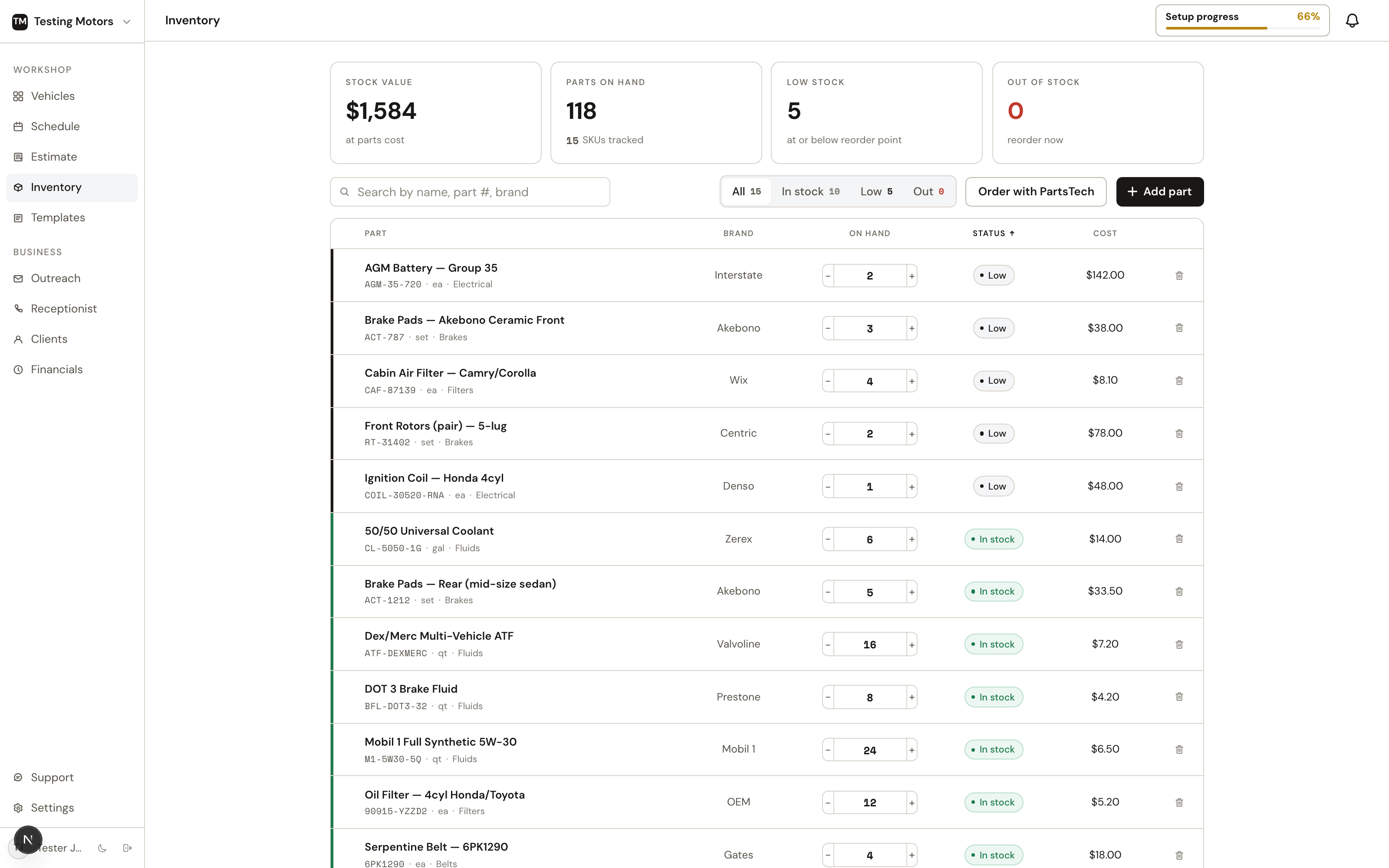
The Inventory page tracks the parts your shop keeps on the shelf: oil, filters, pads, wipers, whatever you stock.
What it tracks
Each part carries a name, part number, brand, category, unit, your cost, on-hand count, and a low-stock threshold. Counts take decimals, so 2.5 quarts of bulk oil is 2.5, not a rounding compromise. Every row answers the shelf questions in one line: on hand, claimed for jobs, available, incoming from suppliers, unit cost, and shelf value, with a status pill (in stock, low stock, needs reorder, on order). The header sums it up: part count, stock value, and how many parts need a reorder. The toolbar has search, a needs-reorder-only switch, status and category filters, and sorting. The list fits your screen and paginates; the footer keeps the totals in view. Edit an on-hand count right in the row; a row that needs a reorder carries an Order link under its status pill that opens the supplier search already looking for that part number, and a row with stock on order carries Receive there instead.
The Orders tab lists your supplier stock orders: the items and their costs, order and PO numbers, part count, total, status, and ETA. Delivered orders move onto the shelf automatically the moment the delivery is detected, and stay listed for a month.
Bought parts somewhere else (a counter purchase, a phone order, dealer parts)? Record outside order on the Orders tab takes a photo or PDF of the invoice (or the pasted email) and reads it into inventory for you: supplier, order numbers, and every part line with quantity and cost, matched against what's already on your shelf. You review and edit the draft before anything is saved; delivered orders land on hand, pending ones land as on order.
Vendors and what you owe
A vendor is anyone you pay for a job: a parts supplier, a sublet shop (alignment, machine shop, glass), a towing company. There is one vendor list, here on Inventory > Vendors: your PartsTech suppliers are on it automatically, and you add the rest. Every purchase names its vendor (a parts order carries the supplier it came from; a sublet line picks its vendor right on the job), and the vendor's cost on that purchase is a bill you owe until you mark it paid. Vendors > Bills collects those bills by vendor; Financials shows just the total you owe. Each vendor row says what you use them for (parts, sublet work, or both), read from those purchases.
Where the pieces live:
- Inventory > Vendors: the list, contacts and terms, and Bills (what you owe, mark paid).
- Inventory > Orders: parts orders from suppliers (PartsTech and outside orders); each one is also a bill.
- The job line: sublet work, with its vendor and Sent / Done / Paid.
- Templates > Canned sublets: the reusable sublet presets (name, vendor, your cost, your price).
- Financials > Overview: one line, "You owe vendors", that opens Bills.
The Vendors tab is one list of everyone you buy from. Suppliers connected through PartsTech appear on their own (marked PartsTech; their name is managed there), and you add the rest yourself: the machine shop, the glass installer, the dealer parts counter. Adding one is a name and a payment term (Net 30 unless you pick another); under it, as many contacts as the vendor has (name, role such as Rep, Sales, Billing or Parts counter, phone, email), and the rest only if you want it: branch locations, your account number, a tax ID, a note. The vendor row shows the first contact and their phone. Recording an outside order picks a vendor from this list, and a new vendor (name and phone are enough) can be added right there without leaving the order.
Accounts payable lives on the same tab for anyone with money access. Three figures at the top say what you owe, what is past the vendor's terms, and what you paid in the last 30 days; the Financials Overview repeats the one line that matters ("You owe vendors $X") and links here. Bills lists every purchase CarSignal already knows about: PartsTech orders, outside orders, and sublets with a vendor cost, each with its date, days in A/P, and amount. Mark paid records the date, method, and a reference (check number, last four, confirmation); the bill moves to Paid and the vendor's balance drops. Undo is one click if you marked the wrong one. There is no ledger beyond that: a bill is owed until it has a payment.
Sublet work
Work you send out (alignment, machine work, glass, towing) is a Charge with the Sublet preset on the job, and it stays on the job: under the charge, the line shows its vendor and a state you move from Sent to Done when the work comes back, then Paid once you have paid the vendor (that records the same payment accounts payable shows). Inventory keeps no sublet list; the vendor's bill shows on Vendors > Bills as soon as the sublet has a cost, and that is where you undo a payment. The customer price stays on the job and follows the job's approval rules. The reusable presets (the alignment you sell every week, with its vendor, cost and price) are Canned sublets on the Templates page; applying one picks the matching vendor from your list, or offers to add it.
Returns
Send a part back to the supplier from its row menu (Return to supplier): pick the quantity and reason, and the units come off the shelf immediately. The Returns tab tracks each return until the supplier answers: record the credit amount when it lands, or mark it denied; cancelling a pending return puts the stock back. Every movement shows in the part's history.
Bins, max stock, and alternate numbers
Each part can carry a bin (the shelf or drawer it lives in, shown under the name on the row), a max stock level next to the reorder-at line, and a list of alternate part numbers (supersessions, OEM vs aftermarket, the box number). Search on the Inventory page matches bins and alternate numbers too, so typing the number on the box finds the part even when you stocked it under another one.
Usage and restock suggestions
Every part shows how fast it moves: units used in the last 30 days and per month, counted from stock actually consumed on completed jobs and paid counter sales. When a part drops to its reorder-at line, the row says what to do in one line: 4/mo used · order 6. The suggestion tops the shelf up to the max stock you set, or, without one, to reorder-at plus a month of use, and it already counts what is on order and what open jobs have claimed.
Bulk import and bulk edit
Import CSV in the header takes a spreadsheet of parts. Download the template (name, part number, brand, category, unit, on hand, reorder at, max stock, bin, cost, price, alternate numbers, notes), fill it in, and pick the file: you get a preview before anything writes, with each row marked creates, updates (matched to a part already on the shelf by part number, or by name when there is none), or needs a fix with the reason. Blank cells leave the current value alone. Header names are forgiving (Part #, Qty, Min, Max, Bin, Retail all work), and tab or semicolon files import too.
To change several parts at once, tick their rows and press Edit: set the cost, price, reorder-at, max stock, or bin for all of them in one save. Fields you leave blank stay as they were.
Using stock on estimates
Inventory parts drop straight onto any estimate as line items with cost and retail already set, on repair orders and in Quick Estimate. On-hand counts keep the floor honest about what is actually on the shelf.
Typing a part description on a job also searches your stock as you type: pick the match and the line fills in with the part number, cost, retail, and condition, linked to the shelf. Each linked line shows its coverage right on the job: from stock when the shelf covers it, or 2 of 3 from stock · order 1 when it doesn't. Stock goes to the oldest claim first, so if another job releases a part (line removed, job cancelled, or the part ordered from a supplier instead), the next job in line picks it up automatically.
Adding a part to a job reserves it: the shelf count stays put, but the units show as claimed until the job completes (when stock actually deducts) or the line is removed (the claim releases). Unpaid counter sales reserve their parts the same way: held from the moment the sale is created until it's paid (stock deducts) or voided (the hold releases). Jobs and sales draw from one pool, so a part can't be promised twice.
Stock status runs on what is free to promise (on hand minus everything reserved), so a part that is physically present but fully spoken for reads as out. Adding more than what's free never blocks you. The row shows how many are reserved and, when you're short, how many to order.
Selling over the counter
The Counter sales tab rings up a part or quick charge with no vehicle attached, right on the Inventory page: search your stock onto the sale (free-to-promise counts shown as you pick), set quantities and prices, and charge. It creates a real invoice, holds the stock while unpaid, and deducts on payment. Take cash at the counter, send the invoice by text or email, or save it as a draft; every sale stays listed on the tab with its status. See counter sales.
History
Every quantity change is logged: used on a job (and which one), counted, received, added, removed, with who and when. Open any part to see its recent history.
Restocking
Order stock opens PartsTech itself right on the Inventory page: the same native PartsTech window you use for job parts. Search your suppliers, build the cart, and submit the quote in PartsTech; it comes back as a cart in CarSignal where you review the parts, add a PO, and place the order. Your PartsTech cart survives closing the window. Reopen Order stock (even from a part row's Order link) and the parts you carted are still in it. Only placing it sends the order to the supplier and marks the parts on order. A quote you close without ordering waits on the Orders tab. A part that needs a reorder carries an Order link under its status that opens PartsTech already searching for that part number.
Inventory is your shop's own stock only. Supplier availability and pricing live in the PartsTech flow.