 CarSignal
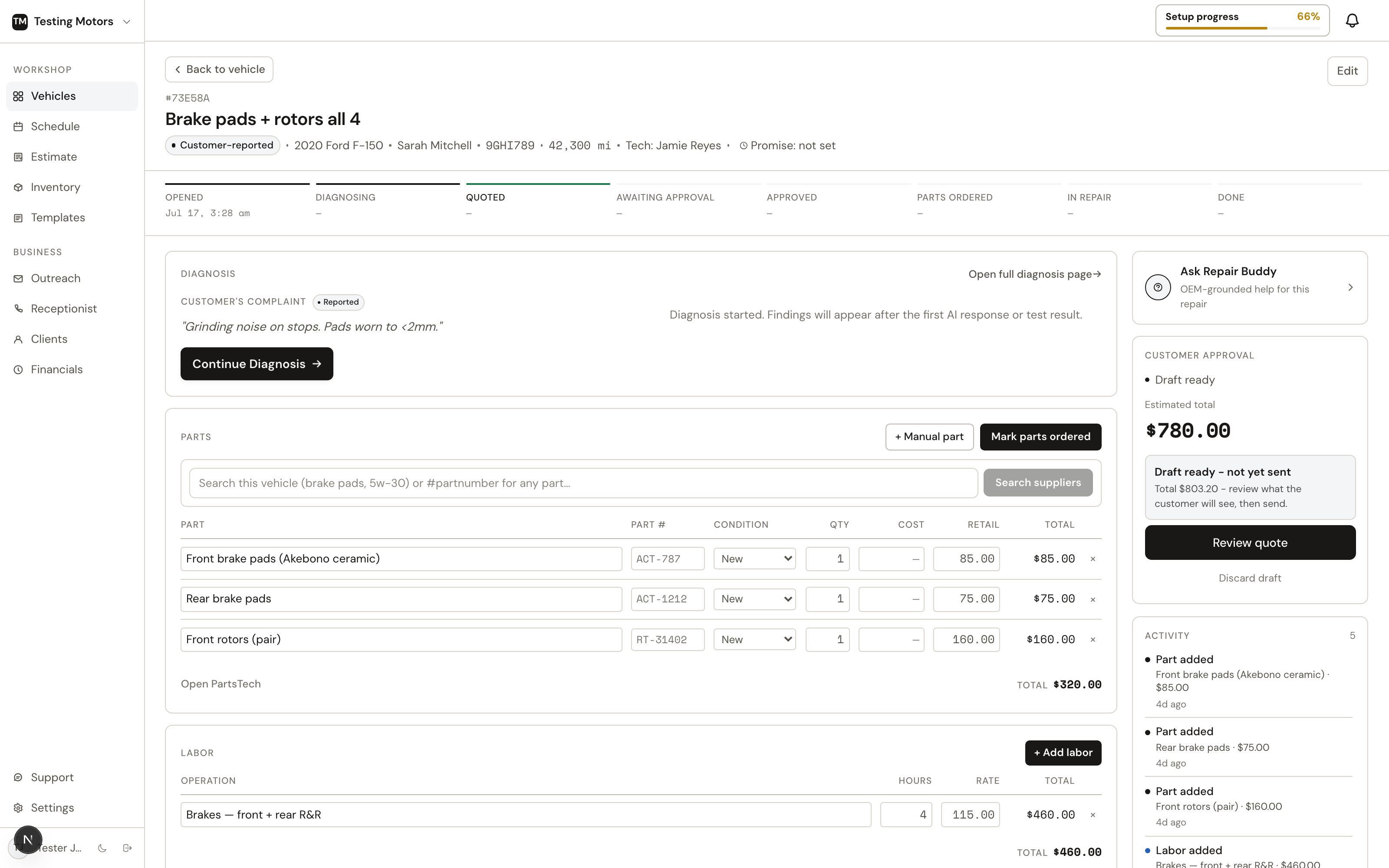
Estimates live on a vehicle's issue. Open the issue and add line items; the totals, taxes, and fees compute as you go.
Shop supplies and the environmental fee are charged once per visit, not once per estimate. The first estimate on a visit carries them (supplies up to your cap, a flat fee once or a percent fee on its parts under the maximum). Once the visit has a bill, the bill owns them: a later estimate on that visit shows only the headroom left, so its Environmental fee row reads On this visit's bill and its total is exactly what approving it adds. A fee you waived or set by hand on the first estimate is the visit's decision; later estimates do not bring the shop default back. A supplies amount you type is never cut to the cap: the cap applies to the computed percent, and the bill reads your number with the word Edited. The same goes for an environmental fee you set by hand on the bill itself (see Invoices): later estimates on that visit show none, and approving them leaves your amount in place. A new visit on the same car starts over.
Line items
Every line is a part, labor, or a charge:
- Parts come from three places: typed by hand, pulled from your inventory, or ordered through PartsTech with cost and retail filled in by your parts matrix. Typing a cost fills the price from the matrix, and a price you typed yourself stays put when the cost changes later; a small Reset to markup link under the price brings the matrix price back when you want it. Negative numbers are refused in cost and quantity, and the previous value stays.
- Labor is entered by hand or pulled from the MOTOR labor guide, which every shop gets through CarSignal's own license. A guide row that is not for this car never prices a job: a hybrid-only operation on a gas engine, or a row whose engine or drivetrain note contradicts the car, is left out even when it is the only row the guide has, the job asks for hours instead, and Add to vehicle refuses such a row in words. Quoted hours round up to the next half hour. A flat per-unit labor line (a tire install priced per tire) edits its count like a quantity, and the total follows. Labor never carries an entered cost; its cost cell reads n/a, and tech pay feeds the profit lines.
A labor line also prices backwards. Type the total you are charging and the rate follows: 1.5 hours typed to $400 stores a rate of $266.67 an hour, the hours stay, and the words under the rate say what happened: Rate set by total: $266.67/h. Open that label and Reset to hours x rate puts your shop rate back and recomputes the total. A typed total that divides to a whole-cent rate (1.5 hours typed to $300 is $200 an hour) is stored exactly as a typed $200 rate would be, so it reads Manual like any typed rate (a shop with named labor rates sees Manual in place of the rate name; the rate menu puts a preset back). The total you typed is what prints, to the cent, on the estimate, the invoice and the customer's page. Change the hours afterwards and the total recomputes from that rate. A line with no hours yet takes the typed total as a flat price and reads Flat $75.00 under its amount. The phone's job screen prints the same words under the same lines. On an approved job the total edits inside Revise like every other price; a higher total asks for the customer's authorization, a lower one does not. Every price, count and hours cell reads what you type the way a person would: "$12", "1,234.50" and "12,5" are 12, 1234.50 and 12.5. Anything that is not a number (a stray letter, "1e9") is refused with a short message and the cell keeps its previous value, the same as a negative number. A charge added to a bill, shop supplies and the environmental fee read the same way.
- Charges cover money that is neither: sublet work, storage, disposal. Add one on the job with the "+ Charge" button, or straight from the vehicle page: New issue, pick Charge, type the description and amount. A standalone charge lands as its own line on the vehicle. Each charge picks taxable or not and can record what you paid a sublet vendor so your profit numbers stay honest. That cost never prints for the customer. Mobile-service shops also get a Travel preset: miles times your rate per mile, printed on the quote and invoice as "50 × $2.00" so the customer sees exactly what the trip cost. A charge can carry its own discount. The charge row has the same chevron a job card has: expand it and the Discount tag sits underneath, opening the same small discount dialog a job uses (percent or dollars; there is no Applies to choice, it reaches the charge). With a discount on, that body also reads it out, "Discount · 10% · Loyalty" with the amount and Edit beside it; collapsed, the row is just the row. The charge editor itself stays price, cost, tax and note; an existing discount rides along untouched when you edit the charge. On the quote, the invoice and the PDF, a discounted charge prints exactly like a discounted part: the list price, the net, and its share in the job's discount row.
- Fluids like oil and coolant use the vehicle's book capacities and grades, in a fixed order: MOTOR's licensed fluid data first, the HaynesPro handbook when MOTOR has no sheet for the car (Ford, for one), then book data. The line says which source gave the figure, so quantities and specs are right without looking them up.
Templates
Canned jobs drop a full service onto the estimate with parts and labor pre-filled: oil changes, brake jobs, mileage services, whatever your shop does often. Build them once on the Templates page, then add them in one click at check-in or on the issue.
With PartsTech connected, template parts written in plain words ("oil filter", "coolant") match to the exact part for that vehicle. Fluids are held to the manufacturer's spec and the book fill quantity: a coolant flush quotes the right chemistry and enough jugs for the whole system. When a supplier listing does not say its jug size or whether it is premixed, the line is still priced, as 1-gallon premixed jugs, and the note says exactly which assumption was made so you can correct it before ordering.
The template editor is one column: the name, a Pricing pill (Labor and parts, or One flat price), then Labor, Parts and Fees as compact rows with a quiet Add link under each. A labor line is Hours or Flat; a part is Enter price or Find per car (the row then reads "priced per car" and CarSignal sources and prices it per vehicle); a fee has an amount and a Taxable pill. The quart rule (Oil quarts included, flat price only), the template discount (Add a discount) and the counted job (Count by unit) stay out of the way behind quiet links until you need them, and the footer shows the estimated total as you type.
A template's labor can be several named lines, not just one number: "Mount & balance 1.0h + Road test 0.3h" each land as their own labor line at your shop rate. A single line with blank hours keeps using book time for each vehicle.
Tire work bills per tire, so labor lines, parts and charges all carry a Per tire pill once the template is counted (Count by unit in the editor): store the book's 0.5h-per-tire and the $1.75-per-tire fee once, and the job starts at your template's tire count, then rescales itself to the tires actually sourced. Sell 2 instead of 4 and the labor hours and per-tire charges follow automatically when the PartsTech cart lands. On tire jobs, automatic book-time labor deliberately stays off: the labor guide's tire operations are timed per single tire, and prefilling one tire's time against a set is exactly the miss that underbills a shop. Per-tire lines are the tire-labor path; without them the job shows zero labor and asks, never a wrong number.
Templates can also carry set charges: money the job always adds at an amount you choose, like a tire disposal fee or a road hazard charge. A charge can be per unit: the California tire fee stores as $1.75 per tire and bills once for every tire on the job, 4 on a set and 1 on a single. It lands as its own line on the quote and the bill, taxable or not per charge, never re-priced or AI-sourced. Charges apply whether the template is flat-priced or itemized, so a flat tire package still adds its disposal fee on top.
A flat-priced oil change can say how much oil the price covers: Price covers up to 5 quarts, extra quarts at $8.50 each. When the template lands on a car whose book fill is larger (MOTOR fluids data first, HaynesPro when MOTOR has none, then the repair book), the job gets one extra line, labeled plainly ("Extra engine oil: 1.6 qt over the 5 qt included"), at your per-quart price. A car the books do not cover gets no line and no guess; price the oil by hand.
A template can also carry a discount: a percent or a dollar amount, on the whole job, labor only, or parts only. Adding the template sets that as the job's discount, named after the template, exactly as if you had added it on the job, so it prints on the quote and the bill the same way. A discount already on the job is never overwritten.
Every job carries a job type (Brakes, Oil change, Tires, Suspension & steering, and so on, from one fixed list of 22) and nobody has to pick it: it comes from the job's name the moment the job is added (the labor guide's own operation names included: "Engine Oil & Filter R&R" is an oil change, "Disc Brake Pads R&R" is brakes), from the labor guide's grouping for a smart job whose name says less, and an hourly pass types anything the rules missed. The open job's footer shows the word; click it to change it. Financials breaks sales and profit down by job type (Explore), commission rules can pay by job type, and service reminders ride on it. There is no category list to maintain and no template setting for it. Any job can carry a reminder from the open card's menu (the three dots at the footer's right edge): Remind in 3, 6 or 12 months. Nothing asks on the card; once set, the footer reads "Remind in 6 months" and clicking it changes or clears it. When the job is completed, Outreach's Follow Up lists the customer as it comes due ("Fix rattle due in about 2 weeks"), the booking link names the job, and the vehicle's picked-up header says "Fix rattle due around Jan 21, 2027". Oil changes, brakes and the other recurring types predict the next visit from your own history on their own; a reminder on one of those jobs replaces that prediction for that job.
Canned sublets have their own list on the Templates page: work you farm out at a set price and sell often (alignment, machine work, glass, towing), saved with its vendor (from the one vendor list on Inventory > Vendors), your cost, your price, taxable or not, and the note the customer sees. On a job, Add job > Charge > Sublet lists them; one tap fills the form and, when the preset's vendor is already on your vendor list, picks it; a vendor you have not added yet is offered as Add <name> as vendor (nothing is created until you say so). The line lands as a sublet charge, and the work itself (vendor, Sent / Done / Paid) is tracked right under that line on the job card; the vendor's bill shows on Inventory > Vendors > Bills. Your cost stays behind the line for profit and never prints.
A template does not need every part priced, or even listed. A tire shop's "Tire install" can be just the mount-and-balance labor plus a disposal charge. The tires themselves get added per car, since they change every time. Leave a part's price blank and it is priced per vehicle when the job is applied.
Operations for this vehicle
You do not have to write a template for every job. Add a job opens with Common jobs for this vehicle as one-tap chips (oil and filter, brake pads, spark plugs, battery, and so on); tap one, or type any work (brake, coil, oil, strut), and the dialog lists Operations for this vehicle: the labor guide's repair operations for that exact car, with book hours, grouped the way the guide files them so related work sits together (Brake Pads R&R beside Brake Rotor R&R beside Brake Caliper R&I). Front and rear are separate rows, so adding front pads never drags the rears along. Type the side with the work ("brake pads front", "front brake pads", "driver axle") and only that row is listed. When MOTOR has no labor guide for the vehicle at all (a side-by-side, a 1984 pickup, an EV for oil work) the guide says so in words, MOTOR has no labor guide for this vehicle, instead of an empty list; a term the guide has no operation for says no operations match. Adding an operation that is already on the open visit asks once, inline: Already on this visit. Add again? with Add again and Skip; declined or removed jobs never count. Operations the guide prices per unit (one coil, each additional, all) show those choices when you open the row. When the guide files two times for the same operation on your vehicle without saying why, you see one row with the shorter book time and the other offered as an alternate when you open it.
Add creates the job at once and opens its card: the labor line at book hours times your labor rate (open the row first for the per-unit choices or Add labor only), plus one part slot for each part the operation needs (pads for a pad job, a filter and oil for an oil change, two rotors for a rotor job, the filter, pan gasket and fluid for a transmission filter job, with the fluid count from MOTOR's service fill when it states one). Within a few seconds each slot shows your suppliers' parts for this exact vehicle as a row of compact cards you scroll sideways right under it (Pick a part), up to ten per supplier and forty in all: the name, brand and part number with the product picture when the catalog has one, the price each with the supplier's list price beside it and your cost under it, stock in words (In stock · 49, In network · 440, order-in, Order-in), one line with the order-by time and delivery, an Add button, and Details when the catalog knows more (fitment notes, specs, stock by location). The recommended one is marked. On a desktop the arrows at the row's right end page through the cards; the first page is on the card at once, the rest of a long list arrives as you scroll (the title row reads "Reading the catalog" for a moment), and Details reads the catalog the same way. Cards from your own shelf show the shelf location and On hand count with no delivery line (there is nothing to deliver). A listing the supplier shows without a price is still a card, with a dash where the price goes and never the recommended one; tap it and the line prices from your PartsTech cart like any other add. The recommended card is the fit-and-value pick: the brand that fits this vehicle's class, inside a price ceiling, then the best margin at your parts matrix; it is never simply the most expensive part. Above the cards, one line of chips filters the row: All, Inventory, then one chip per supplier (WORLDPAC, AutoZone, NAPA, each with its count); tap a supplier to see only its parts, tap Inventory to put the parts you have on hand first (On hand · 3 with the shelf location, Add from shelf puts it on the job from your inventory with no supplier order), and with Inventory alone the supplier rows hide. CarSignal remembers the chips you picked for the rest of your session, on every job of the visit. The last card, More from the catalog, is the job's Add part door (PartsTech on this job's cart). While a slot is still being searched it is not a row either: the card says Looking for Front brake rotors in the catalog under the job header, and that word becomes the slot with its cards, or the no-match sentence, when the search settles. The search tries the slot's words as written, then the part type alone ("brake rotor"), then the bare noun ("rotor"), with the position (front, rear) used to rank what comes back. A slot the catalog has no match for on this car is not a row: the card says No catalog match for Front brake rotors. Add part to pick one. under the job header, and the sentence goes away once a part of that type is on the job. A canned job's plain-words parts (Front brake rotors ×2, no price or part number) are the same slots and go through the same flow, from Add job, from check-in and from the phone alike (the template's old auto-source switch gates nothing; the AI badge on the Templates list only means the template has parts priced per car); parts you typed with a price or a part number apply exactly as written and are never looked up, and a brand you typed prints on the line. A count you typed above 1 on a template part ("Engine oil x5") is yours: the candidates size to it and the book fill never rewrites it; at 1, the editor's default, the book sets the quarts as on a labor-guide job. Template prices are dollars and cents: a third decimal is refused when the template is saved. Tap one and it becomes the line at once, priced; the row says Adding to cart for a few seconds while CarSignal puts it in your PartsTech cart, then In cart. When PartsTech is still busy with another part you just picked, the row says Adding to cart · PartsTech is busy with another part and finishes on its own; it is never a failure. If the supplier refuses the cart add (stock moved), the line stays priced with the reason on it and a Retry, and the parts screen tries it again when you order. Opening PartsTech for a job first finishes any cart change still on its way, so the cart you see is the job. Nothing is picked for you. Picked the wrong one? A picked part keeps its candidates: the small chevron after its name, or Change part in its row menu, reopens the same row of cards with the current part marked Chosen; Update on another card swaps it in place with the same count (a fluid slot takes the new pack's count), repriced from the new cost by your parts matrix, and the old part leaves your PartsTech cart on its own. An ordered part never swaps (the menu says so), a part still on its way into the cart asks you to wait a moment, and approved work changes through Revise approved work like any other edit. The oil quantity comes from the car's book: MOTOR's fluid sheet first (the grade filters the list and the fill sets the quarts), the HaynesPro handbook when MOTOR has no sheet for the vehicle, and when neither states the fill the oil slot opens at quantity 1 and says so in red ("Fill not on file, set the quarts"), with the oils unfiltered and none recommended, so you set the grade and quarts yourself rather than trust a guess. Your own canned jobs still lead the list; the guide's operations sit under them.
The Templates page lists every job template with its labor, part count, charge total, and flat price, and every inspection checklist with its item counts. Search across both, filter to Jobs or Inspections, and duplicate any template to use it as a starting point.
AI drafting
For most jobs you do not have to build the estimate at all. AI estimates draft the line items, labor hours, and fair part prices from the diagnosis or the service request, and you edit from there.
Adding to approved work
Once a job is approved, its lines are frozen as the customer approved them. The Add labor, Add charge and Add by hand buttons stay on the card; on an approved job they open Revise, where the addition is staged, reviewed and confirmed, and the original approval is kept on record. Add part goes to PartsTech and comes back staged for the same revision.
The four add doors under a job's lines each do one thing: Add labor opens the MOTOR labor guide for this car, Add part opens PartsTech on this job's cart, Add charge opens the charge form, and Add by hand is the one door for a part or labor line you type yourself (or pick from your inventory as you type), with no guide and no catalog behind it.
What you make on it
While a job is still an estimate, the right rail shows Expected profit under the Send for approval and Record approval buttons: revenue minus parts cost, tech pay and charge costs, with the margin and, from one labor hour up, profit per hour. The Send quote screen repeats it under the quote summary, so you know what the job earns before it goes out, and it moves the moment a price or discount changes. Approved work keeps its own profit block. Both need part costs to be set; until then the line says so instead of guessing. Only roles with money access see either.
Set a gross profit per hour goal in Settings, Labor and parts (one number) and every profit per hour figure, on the rail and on each job, turns orange and says under goal when a job earns less than that per billed labor hour; the hover shows the goal and the gap. The board does not change.
Preview before sending
Preview shows exactly what the customer will see on their phone: the plain-English report, the itemized cost, and the approve button. Every customer-facing sentence can be edited inline, or rewritten by AI, before anything sends. The preview follows your What customers see choices the same way the customer's link does: a part number or labor hour you hid is gone here too, and a quiet "Customer sees" line under the title says what prints, with a Change word for this quote only. Flip a switch on the Send quote sheet while the preview is open and the preview follows. A job whose required part is still unpriced cannot go out: it reads Needs pricing on its row, the estimate total says Excludes 1 job needing pricing, and the send sheet and Record approval count only the priced jobs until you pick the part.
Next: Sending quotes.
Reading the labor guide's rows
Each operation row carries MOTOR's own facts: the qualifiers that tell two times for one job apart (engine, year span, Manual or Automatic) as small tags, the required skill level (A to D) in a circle, and the book hours. Two rows with the same name and different qualifiers are different jobs and both stay listed, exactly as the labor guide files them; only true duplicates collapse into one row with the other time as a choice. The subgroup header shows MOTOR's path (Engine, Cooling and Exhaust › Engine). Eight rows show first; the rest of the family sit behind "Show more".
You can also browse the guide by system instead of typing: Brakes, Engine, Cooling, Exhaust, HVAC, Starting & Charging, Ignition & Fuel, Suspension, Steering, Transmission & Drivetrain, Maintenance, Lighting & Body. Tapping one (or typing its name) lists the whole family of operations for the car, grouped the way the guide groups them. The same chips are on the check-in write-up and the mobile Add job sheet.
Labor rates and the parts markup
Each labor line shows its rate. If your shop has set up labor rates in Settings, the rate is a menu of those rates (the name prints under the number); admins also get Custom rate for the one-off case. Without presets the rate is typed, starting at your default labor rate.
Under each part's price a small label says where the price came from: Matrix +35% means the price follows your parts markup matrix at that bracket; Learned +85% means an AI draft priced it at the markup your own invoices show for that cost band (this happens only while your matrix is still the signup default); Manual means someone set it by hand (or it came in from a catalog at its own retail). A manual or learned price never moves when you edit the cost. To put a line back on the matrix, open the label and choose Apply matrix; on a learned price it first says both prices and the difference, because the matrix is usually lower there.
Labor has the same idea with hours. If your shop has a labor matrix (Settings, Labor and parts, the Labor side of Markup matrices: hour ranges to multipliers, for example 0 to 1h x1, 1 to 3h x0.9, 3h+ x0.85), book hours go through it once, when a labor line is created from the labor guide. An AI draft (the automatic draft on a new job, the issue-page draft after a diagnosis) lands its MOTOR labor the same way, at the same rate a labor-guide add starts at. Under the hours a small label says Matrix x0.9; open it to switch that line back to Book hours, or to apply the matrix again. A time you type reads Manual and stays. Lines on a sent quote or approved work never change.
Adding a job: templates and the labor guide
Add job is one small sheet with Service | Diagnosis | Charge at the top. Service leads with the search box; your templates (the canned jobs you have priced the way you like) list under it with Add on each row, the box filters them, and one row opens the labor guide for this car. A typed name that matches nothing adds a plain job with Enter or the Add button. Diagnosis leads with the customer's concern in their words; the job name is optional and takes the concern's first words when you leave it blank. Charge picks its Kind from a menu (Sublet, Storage, Disposal, Other; Travel for mobile-service shops), then the name, the amount and taxable on one line, a note behind Add note, and per-unit pricing (days, miles, or a quantity times a rate) behind Per day, Per mile or Charge per unit. A sublet adds the vendor pill and your canned sublets under the name: one tap fills the whole form.
The labor guide is a screen of its own. Pick a system on the left (Brakes, Engine, Maintenance, ...) or search; every operation the guide files for this exact car is listed with its book time, position (front and rear are separate rows), engine or transmission qualifiers and skill level. Tick as many as you need. Each ticked operation becomes its own job: labor at book time times your rate, and a slot for each part it needs, or Labor only if you prefer. Create N jobs lays them all down at once; the card then shows your suppliers' candidates under each slot so you choose the actual part. The check-in write-up opens the same guide, and the picks become jobs when the car is checked in. The phone has the same screen.